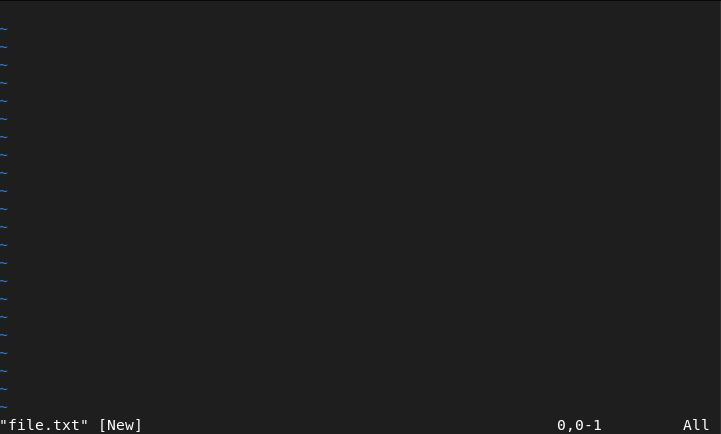
In this brief tutorial, we will use several of the commands above to perform basic operations in Vim. Open a terminal and type vim file.txt to create a blank text file and launch the Vim application. Your terminal window should now resemble the following image.
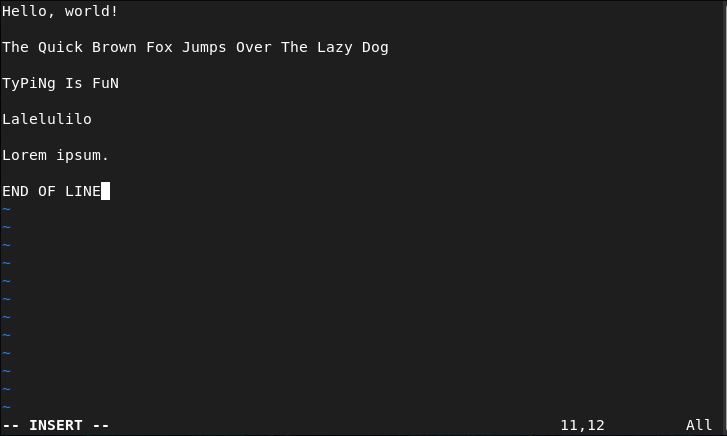
Next, press i to enter “INSERT” mode. Populate the file with the displayed text in the following image. Once complete, press Escape to exit INSERT mode, and then type :w. This will save your changes to file.txt.
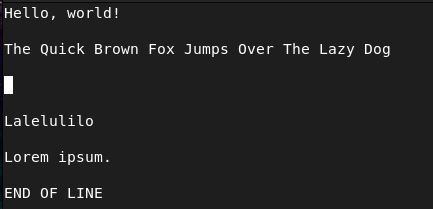
Next, we will delete line 5’s content. Navigate your cursor to the beginning of the line, and press d$. Your window should resemble the image below.
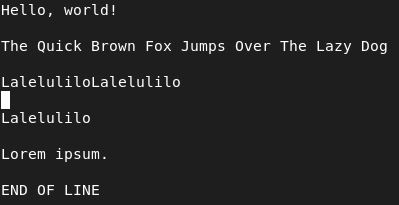
We’ll now copy and paste text within the file. Navigate to the beginning of line 7 and press v to highlight text. Use your arrow or hjkl keys to highlight all of ‘Lalelulilo’ and then press y, copying the highlighted text. Now proceed to the beginning of line 5 and press P, pasting the copied text on that line, starting with the current location of your cursor. The result should appear similar to the following image:
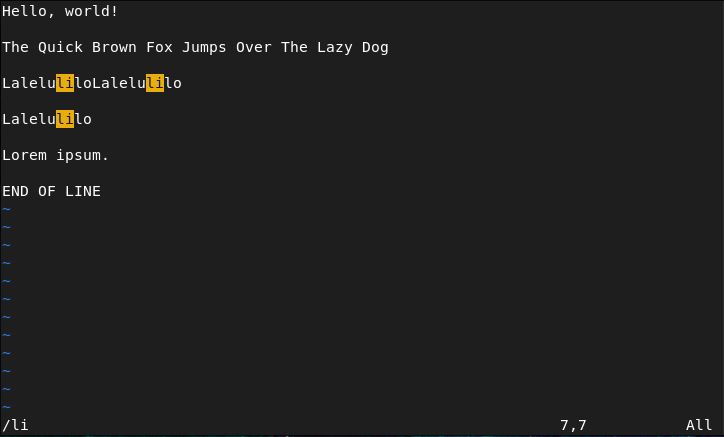
We’d now like to find the string ‘li’. To do this, type /li and press Enter. All instances of ‘li’ will now be highlighted, as shown below:
We’ve made a lot of changes now, but we do not wish to alter file.txt. Type :w filenew.txt to save our changes to a new text file, preserving the state of file.txt when we last saved.
We’ve now completed our session in Vim, and can safely exit by typing :q and pressing Enter.
Leave a Reply